Excel Function: TextSplit
Syntax
=TEXTSPLIT(text,col_delimiter,[row_delimiter],[ignore_empty], [match_mode], [pad_with])
The TEXTSPLIT function syntax has the following arguments:
text The text you want to split. Required.
col_delimiter The text that marks the point where to spill the text across columns.
row_delimiter The text that marks the point where to spill the text down rows. Optional.
ignore_empty Specify TRUE to ignore consecutive delimiters. Defaults to FALSE, which creates an empty cell. Optional.
match_mode Specify 1 to perform a case-insensitive match. Defaults to 0, which does a case-sensitive match. Optional.
pad_with The value with which to pad the result. The default is #N/A.
Remarks
If there is more than one delimiter, then an array constant must be used. For example, to split by both a comma, and a period, use =TEXTSPLIT(A1,{",","."}).
Examples
Copy the example data and paste it in cell A1 of a new Excel worksheet. If you need to, you can adjust the column widths to see all the data.
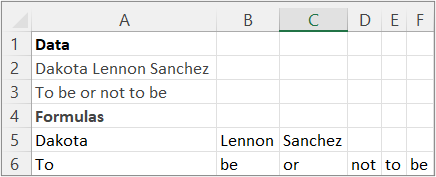
Split a name and a sentence by using a common delimiter.
Data |
Dakota Lennon Sanchez |
To be or not to be |
Formulas |
=TEXTSPLIT(A2, " ") |
=TEXTSPLIT(A3, " ") |
The following illustration shows the results.
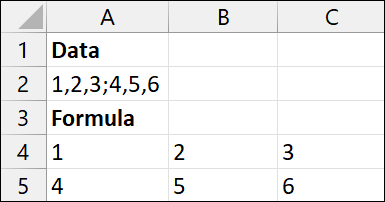
Split the array constants in A2 into a 2X3 array.
Data | ||||
1,2,3;4,5,6 | ||||
Formulas | ||||
=TEXTSPLIT(A2,",",";") |
The following illustration shows the results.
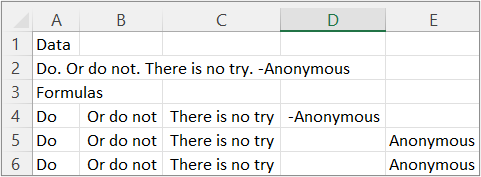
Data | ||||||
Do. Or do not. There is no try. -Anonymous | ||||||
Formulas | ||||||
=TEXTSPLIT(A2,".") | ||||||
=TEXTSPLIT(A2,{".","-"}) | ||||||
=TEXTSPLIT(A2,{".","-"},,FALSE) |
The following illustration shows the results.
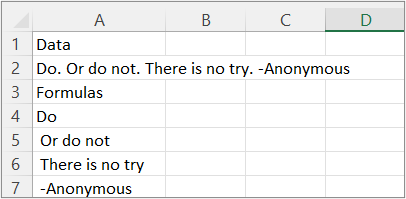
Data | |||
Do. Or do not. There is no try. -Anonymous | |||
Formulas | |||
=TEXTSPLIT(A2,,".") |
The following illustration shows the results.
Data | |||
Do. Or do not. There is no try. -Anonymous | |||
Formulas | |||
=TEXTSPLIT(A2,,{".","-"}) |
The following illustration shows the results.
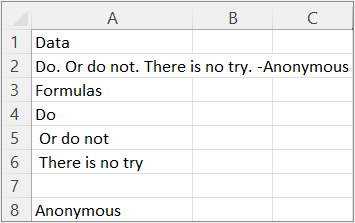
Data | |||
Do. Or do not. There is no try. -Anonymous | |||
Formulas | |||
=TEXTSPLIT(A2,,{".","-"},TRUE) |
The following illustration shows the results.
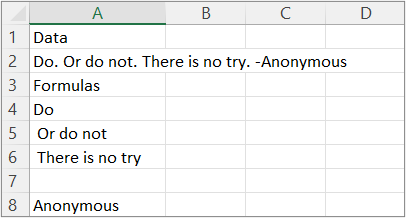
Tip To remove the #NA error, use the IFNA function. Or add the pad_with argument.
Data | |||||
Do. Or do not. There is no try. -Anonymous | |||||
Formulas | |||||
=TEXTSPLIT(A2," ",".",TRUE) |
The following illustration shows the results.
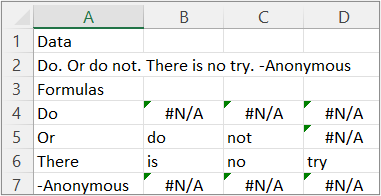

Comments
Post a Comment